 Posted on October 20, 2026 by Nate_007 Reads:
 In this article we will explore the basics of the pandas library in python. We will cover how to load data into pandas from excel and csv files, as well as how to clean and explore the data using various methods such as df.describe(), df.info(), df.groupby() and df.plot(). We will also see how to calculate new values in pandas by applying mathematical operations to the columns in the dataframe. Finally we will see how to plot the data using matplotlib to visualise trends in the data.
What is pandas? Pandas is a useful python library for visualising and exploring data, similar to using excel but in a programtic way. Its foundation is a 2d tabular form but you can do more database like opterations like grouping, joining to aggregate and merge dataset to build the required data insights. It also is a key library used for data cleaning and prepossessing before applying machine learning models to the data.
1. Installing pandas
First steps to using pandas is installation using pip.
pip install pandas2. Importing pandas
Next steps are to import the library ready for use. With most library imports into the python program we use an alias for future calls to reduce written code.
import pandas as pd3. Setting file path
Next we contruct an variable to hold the path of where a file is stored. Pandas can import data using several file types as well as pull data from a database using its from_sql method but for this intro we will only focus on importing data from csv and excel as well as construct small data frames manual from python lists and dictionaries.
# set var to path of file
file_path = r"/path_to_file"
4. Data loading methods
To import the data into the pandas DataFrame from an excel or csv we use the read_excel and read_csv methods. there are other methods to load data such as from sql, tables, clipboard, or json just to name a few but for this article we will focus on obtaining data from excel, csv and python lists and dictionaries.
#importing dataset into a dataframe from excel
df = pd.read_excel(file_path, sheet_name="Sheet1")

#importing dataset into a dataframe from csv
df_csv = pd.read_csv(file_path)

#importing dataset into a dataframe from a list
list = [
    ['John', 'Male', 25],
    ['Toni', 'Female', 31],
]

df_list = pd.DataFrame(list, columns=['Name', 'Gender', 'Age']

#importing dataset into a dataframe from a dictionary of lists
dict = {
    'item': ['Paper', 'Coffee', 'Ice Cream'],
    'Qty': [5, 10, 25],
    'Price': [2.5, 4.5, 0.5],
}

df_dict = pd.DataFrame(dict)
5. Additional parameters
The above examples show the parsing of base parameters to laod the data, but more parameters can be parsed to modify aspects of how the data is loaded for example in the excel load i parsed Sheet1 but this could be any worksheet into the data frame, also if the data doesnt start till tow 5 i could parse the parameter skiprows=4 to start the loading from row 5.
The pandas documentation gives all the potential parameters.
you can find the pandas documentation here:
https://pandas.pydata.org/docs/reference/api/pandas.read_excel.html
https://pandas.pydata.org/docs/reference/api/pandas.read_csv.html
https://pandas.pydata.org/docs/reference/api/pandas.DataFrame.html#pandas.DataFrame
6. Datasets
For the tutorials in this article you can obtain the following datasets.
Queensland headline waste generation
https://data.gov.au/data/en/dataset/headline-waste-generation-trend
NSW Estury Tempreture, pH and salinity
https://data.gov.au/data/dataset/nsw-nsw-estuary-temperature-ph-and-salinity-data
6.1 Loading dataset from excel
#headline waste generation analysis

#set file path
file_path_xlsx = r'./headline-waste-generation-trend.xlsx' ##adjust to suit your file path

#load dataset
df_xlsx = pd.read_excel(file_path_xlsx, sheet_name='Sheet1', skiprows=3) #skip rows applied because table starts at row 4

#show first 5 rows
df_xlsx.head()
Output:
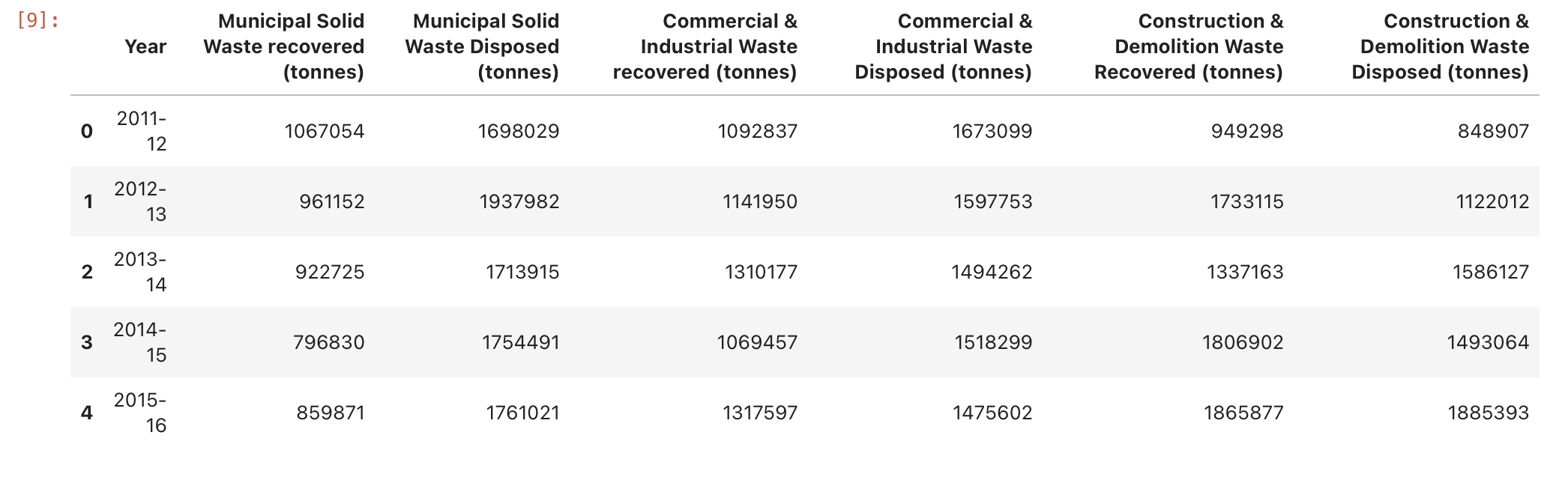
From the data load we can see the table has generated correctly so now we can explore the data
6.2 understanding the shape of the dataset
To understand the shape of the dataset we apply the df.shape method to see how many rows and columns are in the dataset
#apply df.shape
df_xlsx.shape
Output:
[10]: (14, 7)
By applying df.shape we can see the dataset has 14 rows and 7 columns
6.3 Understanding the contents of the dataset
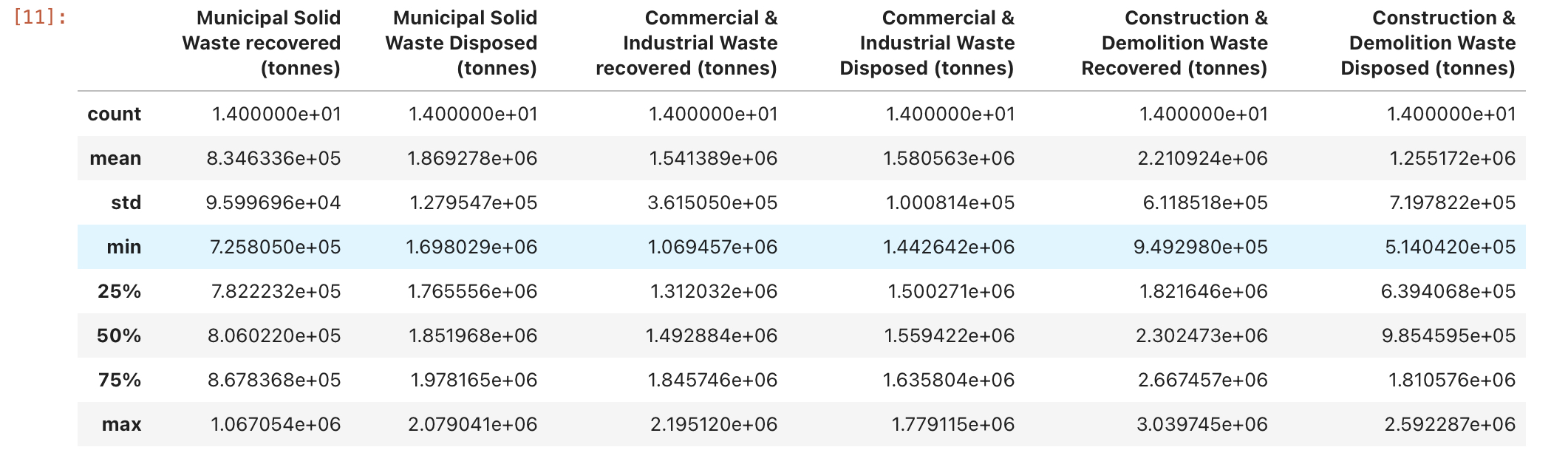
To understand the contents of the dataset we can apply the df.describe() method to see the summary statistics of the dataset.
#apply df.describe()
df_xlsx.describe()
Output:
6.4 Understanding the data types of the dataset
To understand the data types of the dataset we can apply the df.info() method to see the data types of each column in the dataset. This is also useful for seeing if there are any null values in the dataset.
#apply df.info()
df_xlsx.info()
Output:
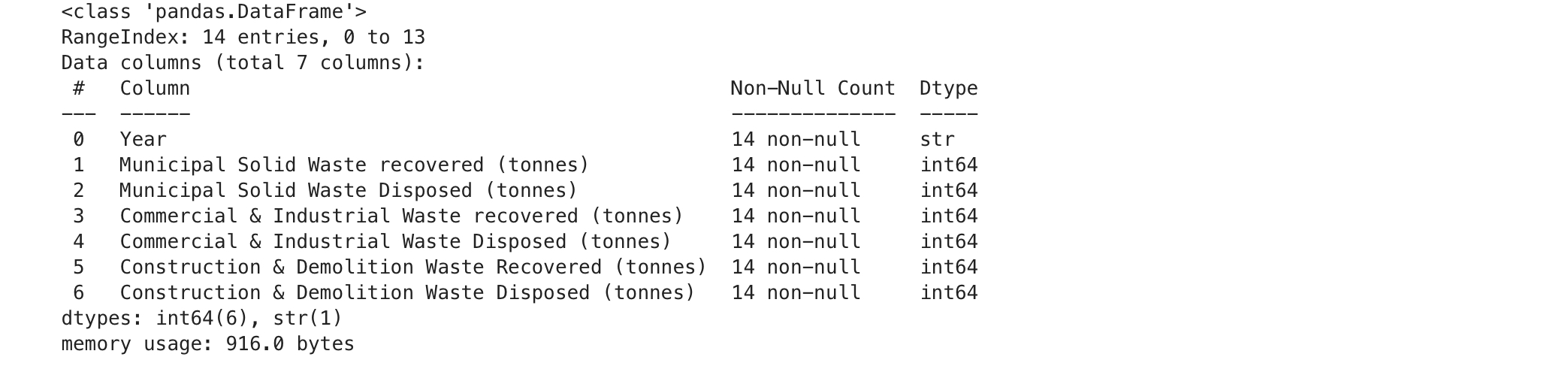
From the data info we can see the dataset has no null values, and there is two categories for each waste type, 1. Recovered and 2. Disposed. So, if we want to see how much waste was recovered by year we can remove the disposed columns from the dataset and plot the result.
6.5 Cleaning the dataset
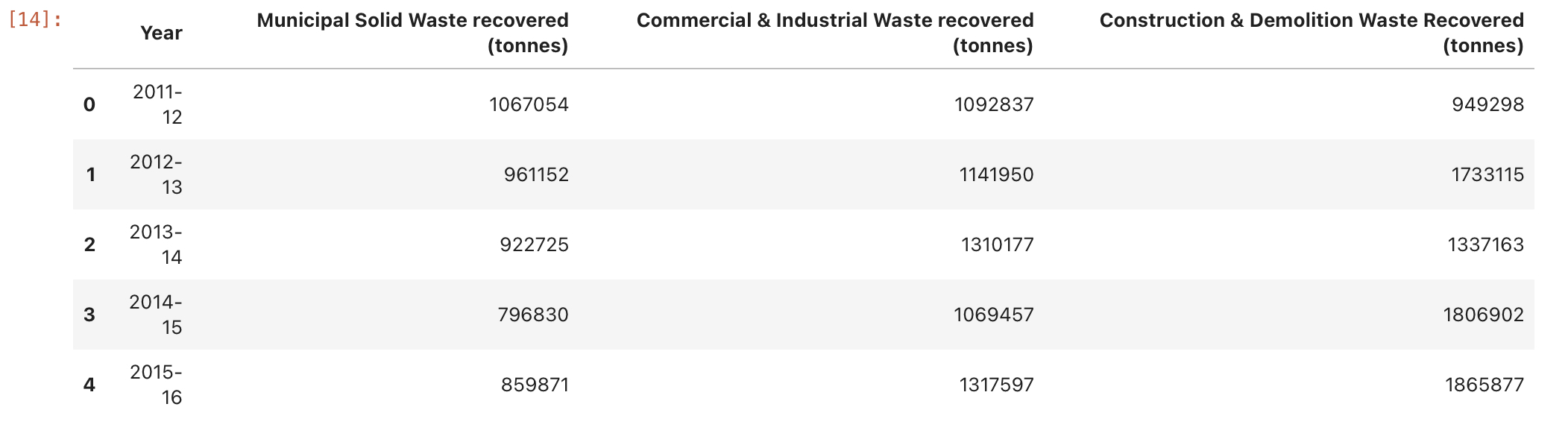
To do this we can use the df.drop() method to remove the disposed columns from the dataset. We can use the df.filter() method to filter the columns that contain the word 'Disposed' and then pass that to the df.drop() method to remove those columns from the dataset.
#clean dataset
df_recovered = df_xlsx.drop(columns=df_xlsx.filter(like='Disposed').columns)

df_recovered.head()
Output:
6.6 Plotting the data
To plot the data we also need to use pythons matplotlib library, which is a plotting library for python. we can use the df.plot() method to plot the data in the DataFrame. we can also use the df.set_index() method to set the index of the DataFrame to the year column so that we can plot the data by year.
Prior to using Matplotlib, the library needs to be installed using the pip method.
pip install matplotlib#plotting
#import matplotlib
import matplotlib.pyplot as plt
df_piv = df_recovered.set_index('Year')
df_piv.plot(kind='bar', figsize=(10, 6), width=0.8)
# Show the plot
plt.tight_layout()
plt.show()Output:
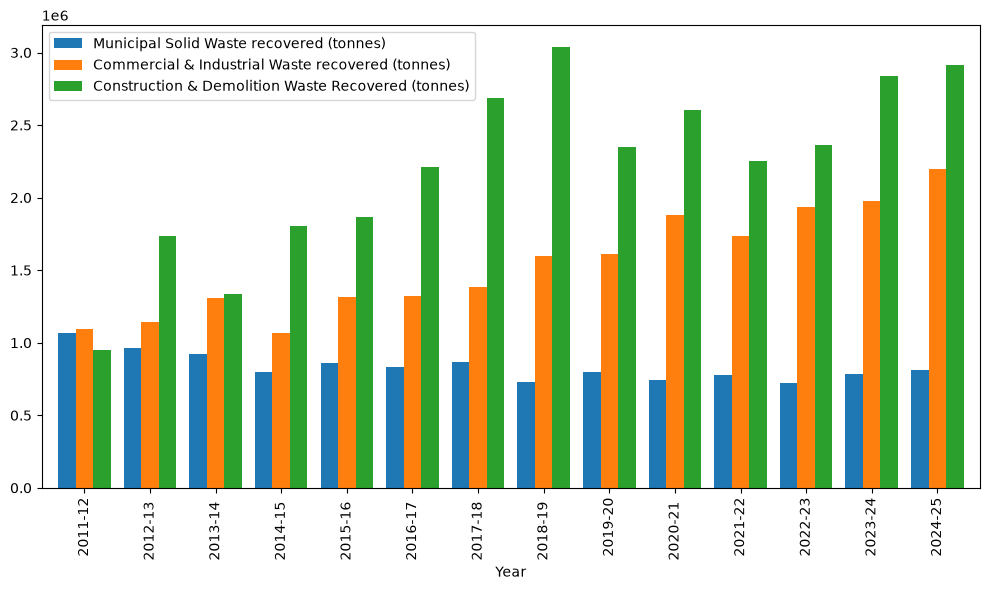
From this data we can see that there is and increase in recovered waste for both commercial & industrial, and construction & demolition wastes but there is a descrease of recovered wastes for municipal solid wastes over the time period.
7. Esturay Tempreture, pH and Salinity
For importing of the NSW Estuary Tempreture, pH and Salinity dataset we will use the pandas read_csv method to load the data into a dataframe. The dataset is in csv format and is encoded in latin-1 so we will need to specify the encoding when loading the data.
#importing dataset

#set file path
file_path_csv = r'./nsw-estuary-temperature-salinity-and-ph-data.csv'

df_csv = pd.read_csv(file_path_csv,  encoding='latin-1') #note this file had encoding of latin-1

df_csv.head(10)
Output:
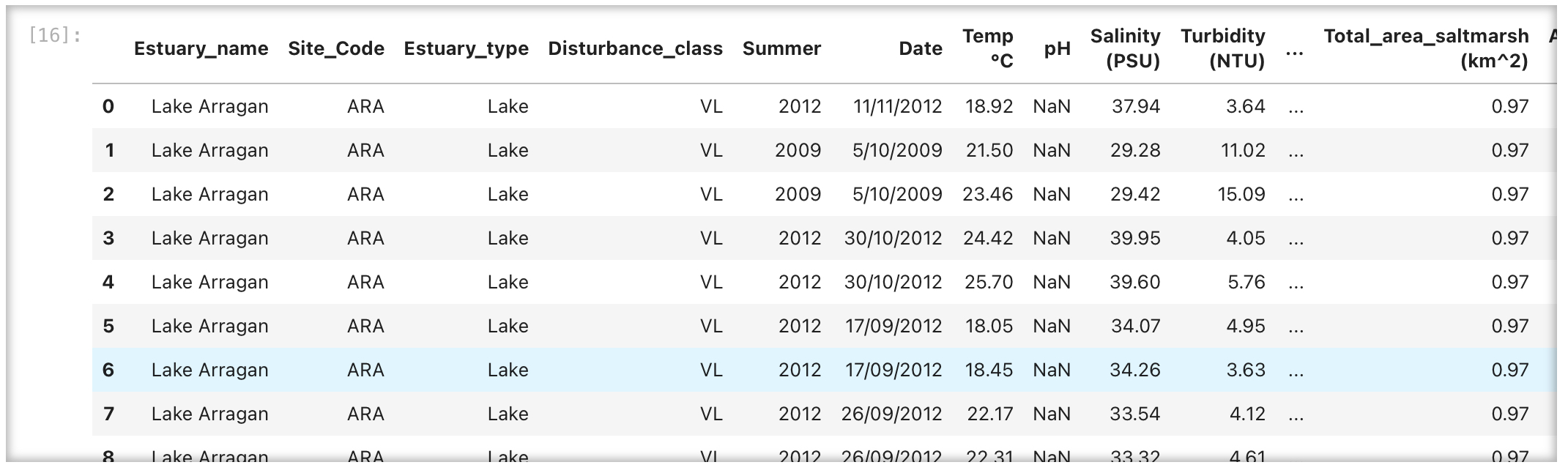
Note: output is truncated as the dataset is large
To explore this data set we apply the df.info() method to see the data types of each column in the dataset. This is also useful for seeing if there are any null values in the dataset.
df_csv.info()Output:
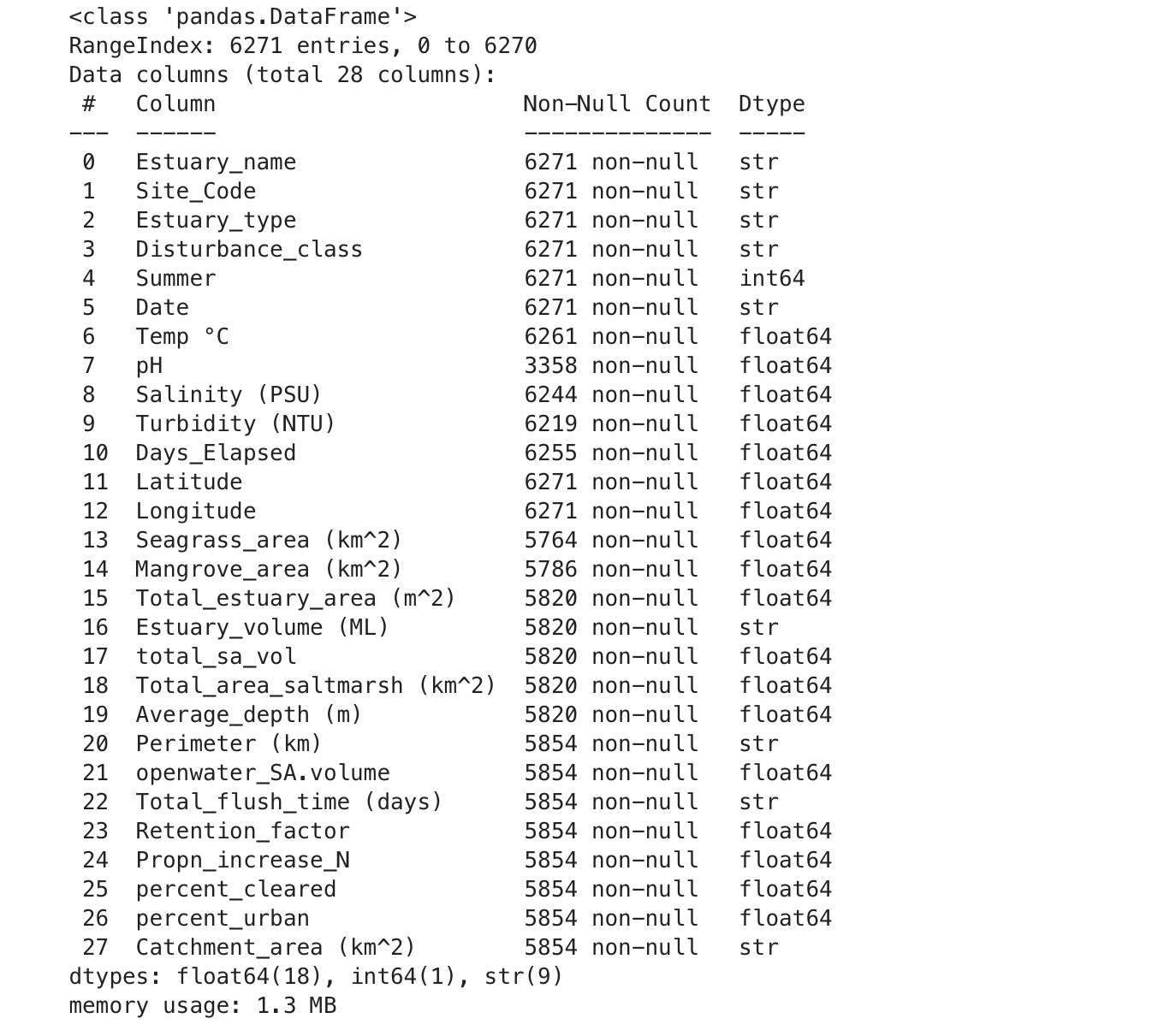
From apply the df.info method we can see the data has 28 columns and 6271 records but some fields have null values.
7.1 Exploring the dataset
By applying the df.unique() method to the 'Estuary_name' column we can see how many unique estuaries are in the dataset. This is useful for understanding the scope of the dataset and for filtering the data to only include the top ten estuaries with the most records.
#find unique values, eg how many estuaries are in the dataset
unique_names = df_csv['Estuary_name'].unique()
pd.DataFrame(unique_names, columns=['Estuary Names'])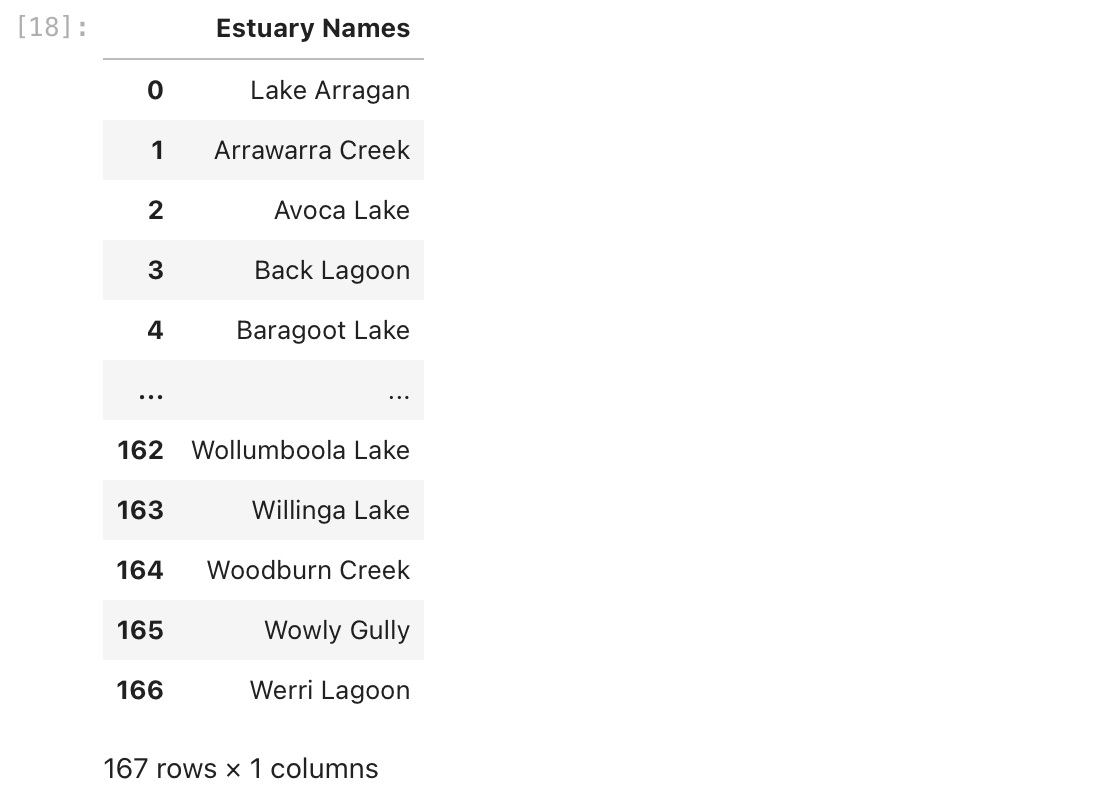
From looking at the unique estaury names we can see there is 167 different estauries.
For the basis of this analysis we only look at the top ten eg which have the most records. To do this we use the value_count method and set the sort parameter to false.
estuary_counts = df_csv['Estuary_name'].value_counts(sort=False)

estuary_counts.head(10)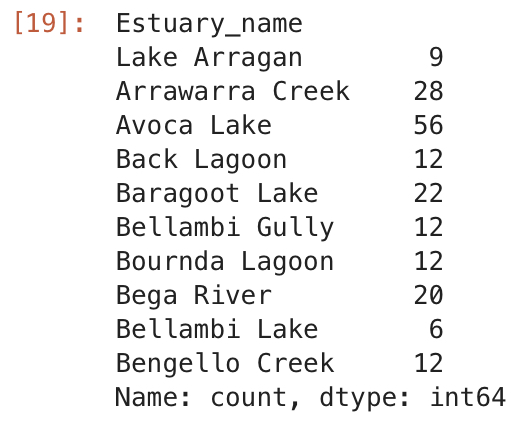
df_topten = df_csv[df_csv['Estuary_name'].isin(estuary_counts.head(10).index)]
df_topten.info()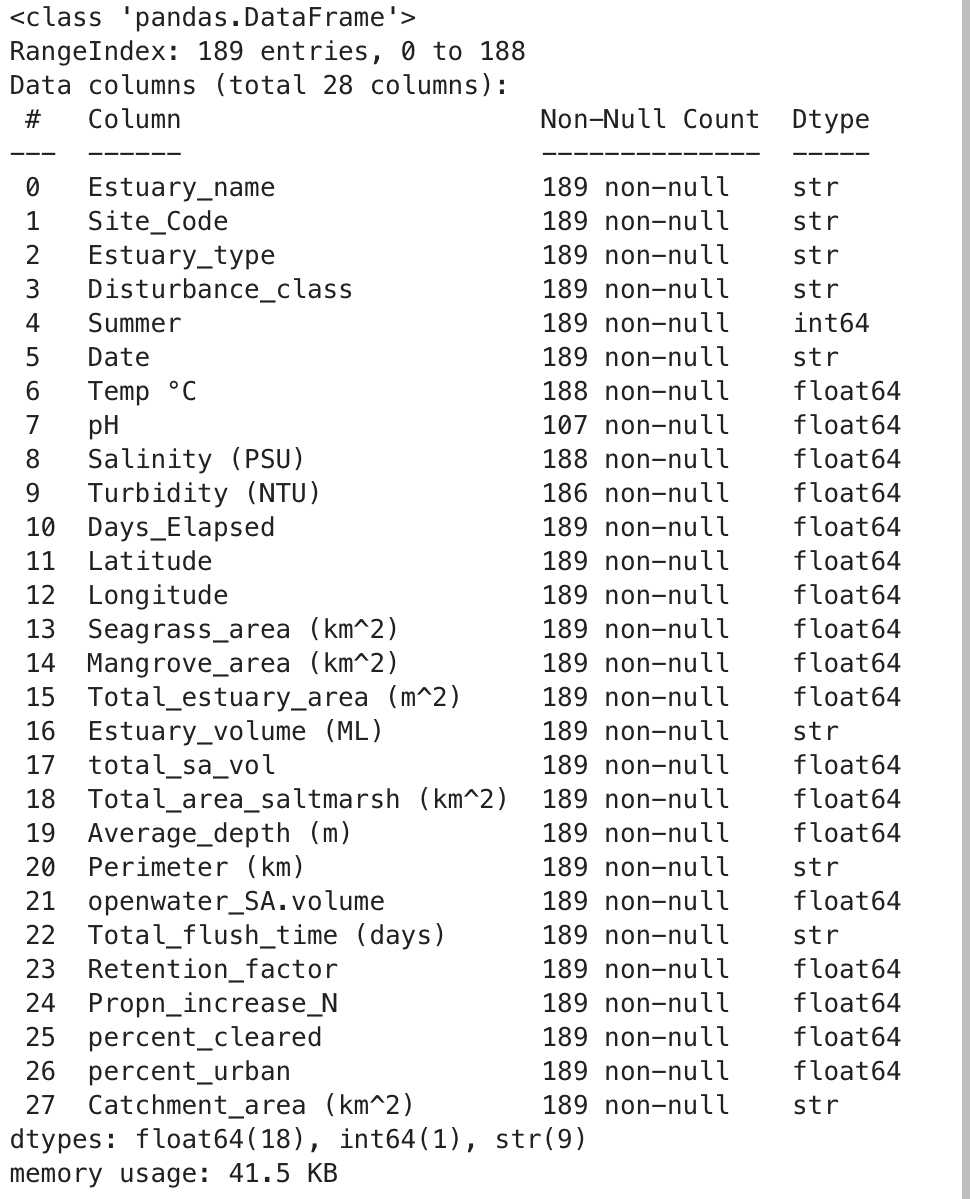
From the reduction in estuary names to only the top ten we can see the dataset has reduced to 189 and contains no null values.
Next we want to establish the range of the data, eg how many years worth of smaples were taken to see if there is any trends in the data. To do this we can use df.groupby method and aggregate by min and max on the date column to find the range of the data.
#check data range using min, max method
df_topten_group = df_topten.groupby('Estuary_name')['Date'].agg(['min', 'max']).reset_index()

df_topten_group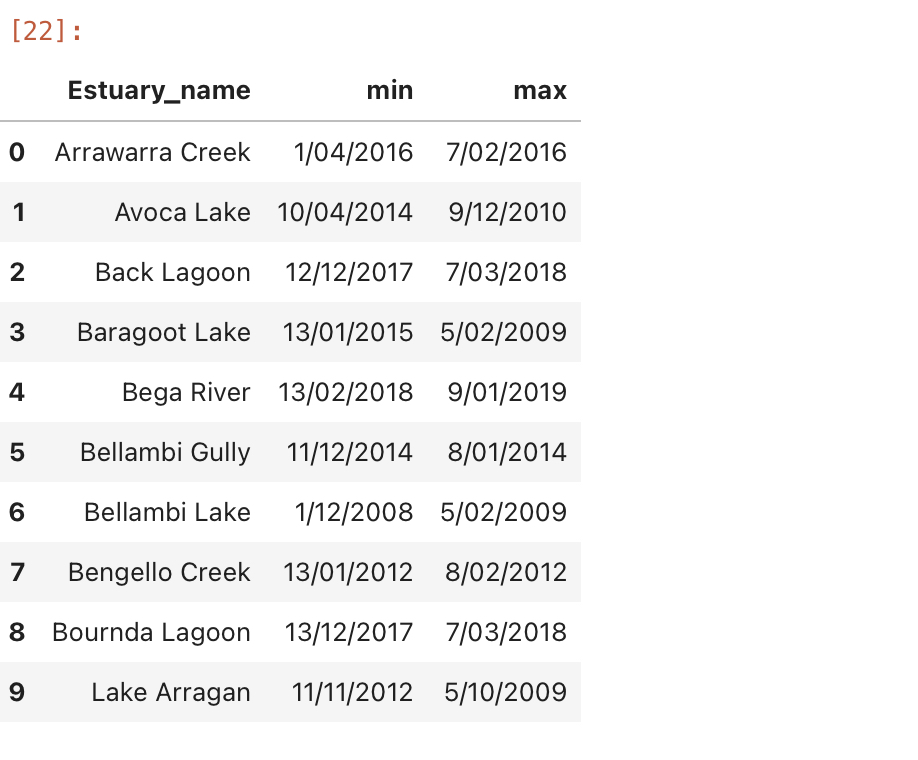
From this data we can see an issue with the data, the min and max dates are not in the correct format, so we need to convert the date column to a datetime format using the pd.to_datetime() method. We can then reapply the min and max methods to get the correct range of dates.
#cast date column to datetime
df_topten['Date'] = pd.to_datetime(df_topten['Date'], errors='coerce')

#reapply min and max methods
df_topten_group = df_topten.groupby('Estuary_name')['Date'].agg(['min', 'max']).reset_index()

#display results
df_topten_group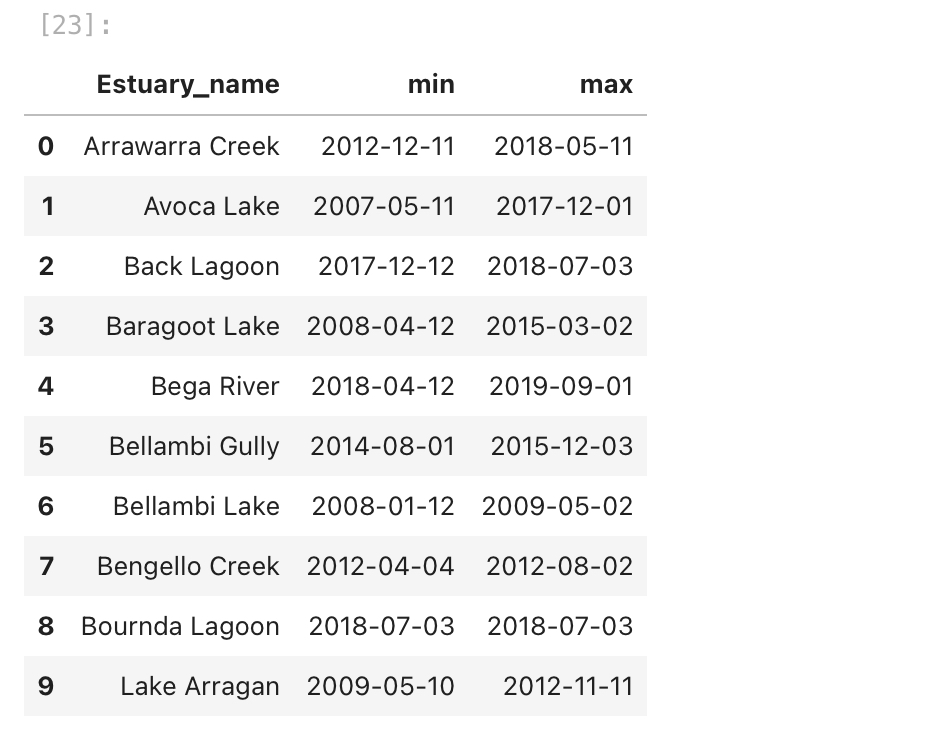
7.2 Calculating new values in Pandas
Like excel we can also calculate new values in pandas by applying mathematical operations to the columns in the dataframe. For example we can calculate the number of years of data for each estuary by subtracting the min date from the max date and converting the result to years. We can then add this as a new column to the dataframe.
Lets calculate the number of years of data for each estuary by subtracting the min date from the max date and converting the result to years. We can then add this as a new column to the dataframe.
#calculate number of years of data for each estuary
df_topten_group['years_of_data'] = (df_topten_group['max'] - df_topten_group['min']).dt.days / 365

#display results
df_topten_group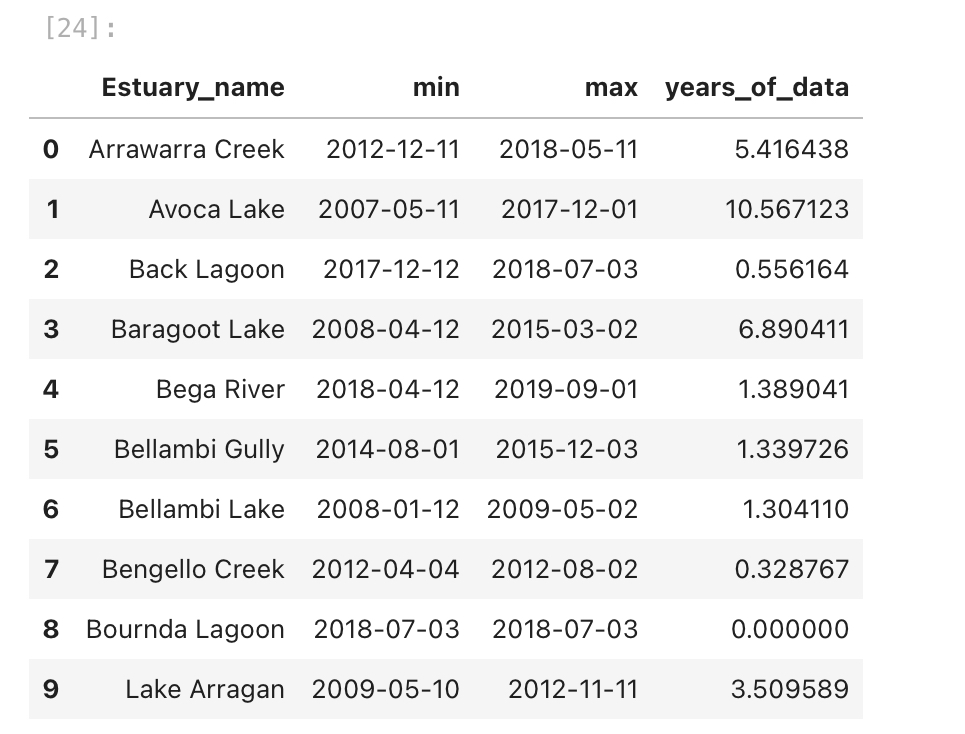
Looking at the results now we can see that Avoca lake has data spanning 10 years, and has 56 records, while the other estuaries have less than 10 years of data and less than 56 records. So for the basis of this analysis we will focus on Avoca lake and see if there is any trends in the data over the 10 year period.
7.3 Trend Analysis
To find trends in the data we can use the pandas groupby method to group the data by year and calculate the mean tempreture for each year. We can then plot the results to see if there is any trend in the data.
Lets look at the trend of tempreture over the years as this is a key indicator of the health of the estuary. We can do this by grouping the data by year and calculating the mean tempreture for each year. We can then plot the results to see if there is any trend in the data.
#group data by year and calculate mean tempreture
df_avoca = df_topten[df_topten['Estuary_name'] == 'Avoca Lake']

#group by mean value each year
df_avoca = df_avoca.groupby(df_avoca['Date'].dt.year)['Temp °C'].mean().reset_index()

#plot results
df_avoca.plot(x='Date', y='Temp °C', kind='line', figsize=(10, 6))
plt.title('Avoca Lake Mean Tempreture Over Time')
plt.xlabel('Year')
plt.ylabel('Mean Tempreture (°C)')
plt.tight_layout()
plt.show()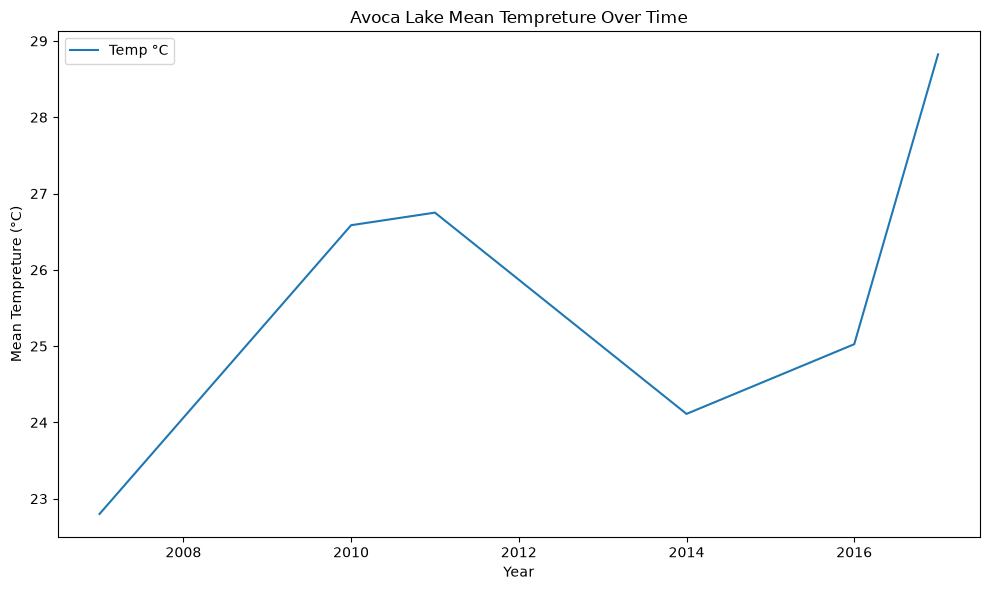
Ok so the data looks a bit noisy, let scatter plot the data to see if there are outliers
#scatter plot data to look for outliers
df_avoca = df_topten[df_topten['Estuary_name'] == 'Avoca Lake']
df_avoca.plot(x='Date', y='Temp °C', kind='scatter', figsize=(10, 6))
plt.title('Avoca Lake Tempreture Scatter Plot')
plt.xlabel('Year')
plt.ylabel('Tempreture (°C)')
plt.tight_layout()
plt.show()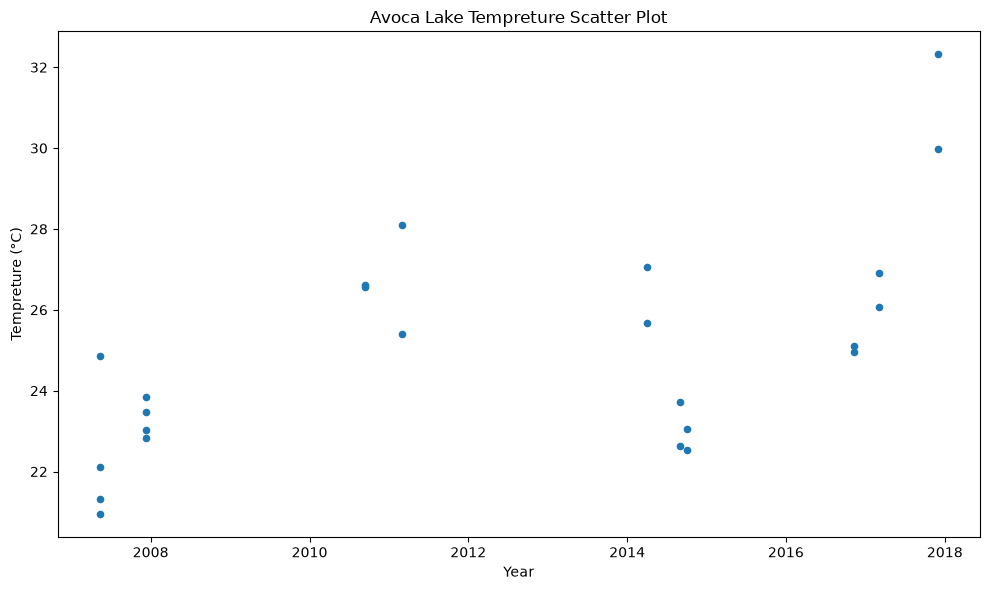
From the scatter we can see that there are years that no tempreture measurements were taken, since we don't have a clean continuos dataset we can't learn much from the data, but we can see that the tempreture is increasing over time, which is a concern for the health of the estuary.
8 Conclusion
To conclude the article we have seen how to load data into pandas from excel and csv files, as well as how to clean and explore the data using various methods such as df.describe(), df.info(), df.groupby() and df.plot(). We have also seen how to calculate new values in pandas by applying mathematical operations to the columns in the dataframe. Finally we have seen how to plot the data using matplotlib to visualise trends in the data.
Pandas is a powerful library for data analysis and visualisation in python, and is a great tool for exploring and understanding data. With the ability to load data from various sources, clean and manipulate the data, and visualise the results, pandas is an essential tool for any data analyst or scientist.
9 Further Reading
For further reading on pandas and data analysis in python, the following resources are recommended:
Pandas documentation: https://pandas.pydata.org/docs/
Python documentation: https://docs.python.org/3/